
Split Tunnel for Apple Devices [GUIDE]
How to Enable Apple Services on SafeNet (Split Tunnel)
Overview
Apple devices (iPhone, iPad, MacBook, Apple TV) need a direct connection to Apple’s servers for push notifications, App Store, iCloud, and software updates. When all traffic routes through SafeNet, Apple’s servers reject connections from datacenter IP addresses because Apple expects to see a residential IP.
This guide adds one firewall rule so Apple traffic bypasses SafeNet and goes directly through your home internet connection. Everything else continues to route through SafeNet as normal.
Time required: About 5 minutes
What this fixes:
- Email push notifications not arriving on iPhone or iPad
- App Store not loading or downloading
- iCloud sync issues
- Software update failures
- Apple TV apps not loading
What this does NOT affect:
- All non-Apple traffic still routes through SafeNet
- DNS filtering and ad blocking still works
- Your browsing privacy is unchanged
Step 1: Create the Apple Services Alias
- Log into your OPNsense vault at 192.168.1.1
- Go to Firewall > Aliases
- Click the + button to add a new alias
-
Fill in the fields:
- Enabled: Checked
- Name: Apple_Services
- Type: Network(s)
- Content: 17.0.0.0/8
- Description: Apple Services
- Click Save
- Click Apply
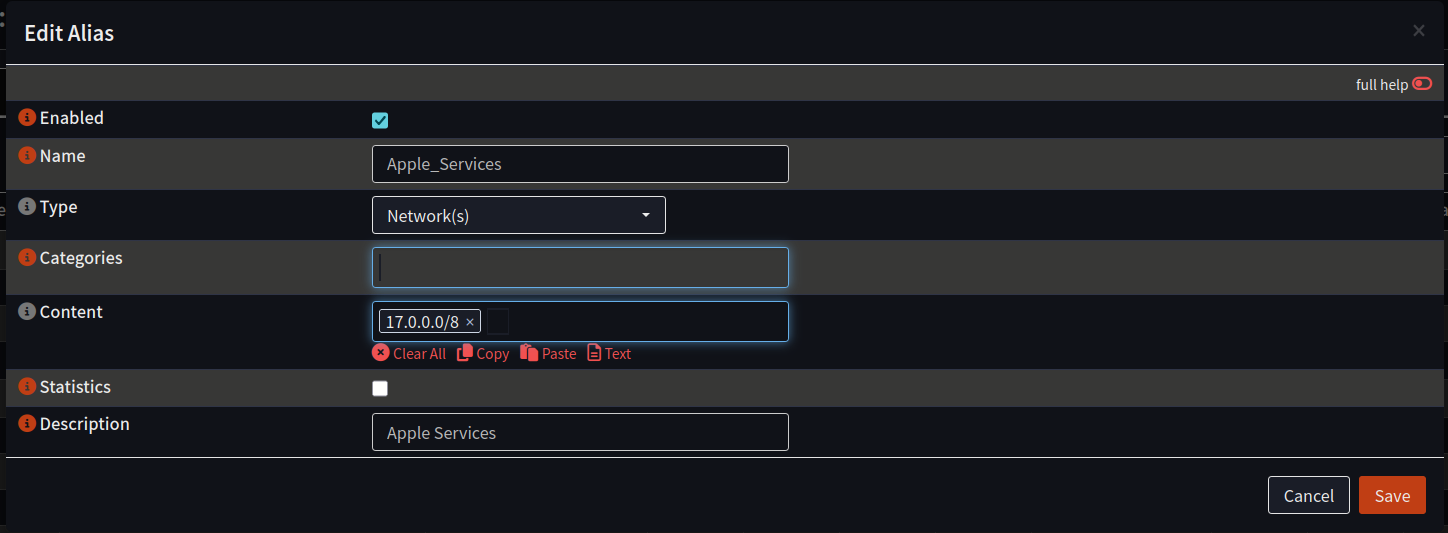
Why 17.0.0.0/8? Apple owns this entire IP range and has for decades. All Apple services including push notifications, App Store, iCloud, and software updates use addresses in this block. This will not accidentally bypass SafeNet for non-Apple traffic.
Step 2: Add the Bypass Firewall Rule
- Go to Firewall > Rules
- You should see your existing rules listed. Click the + button to add a new rule
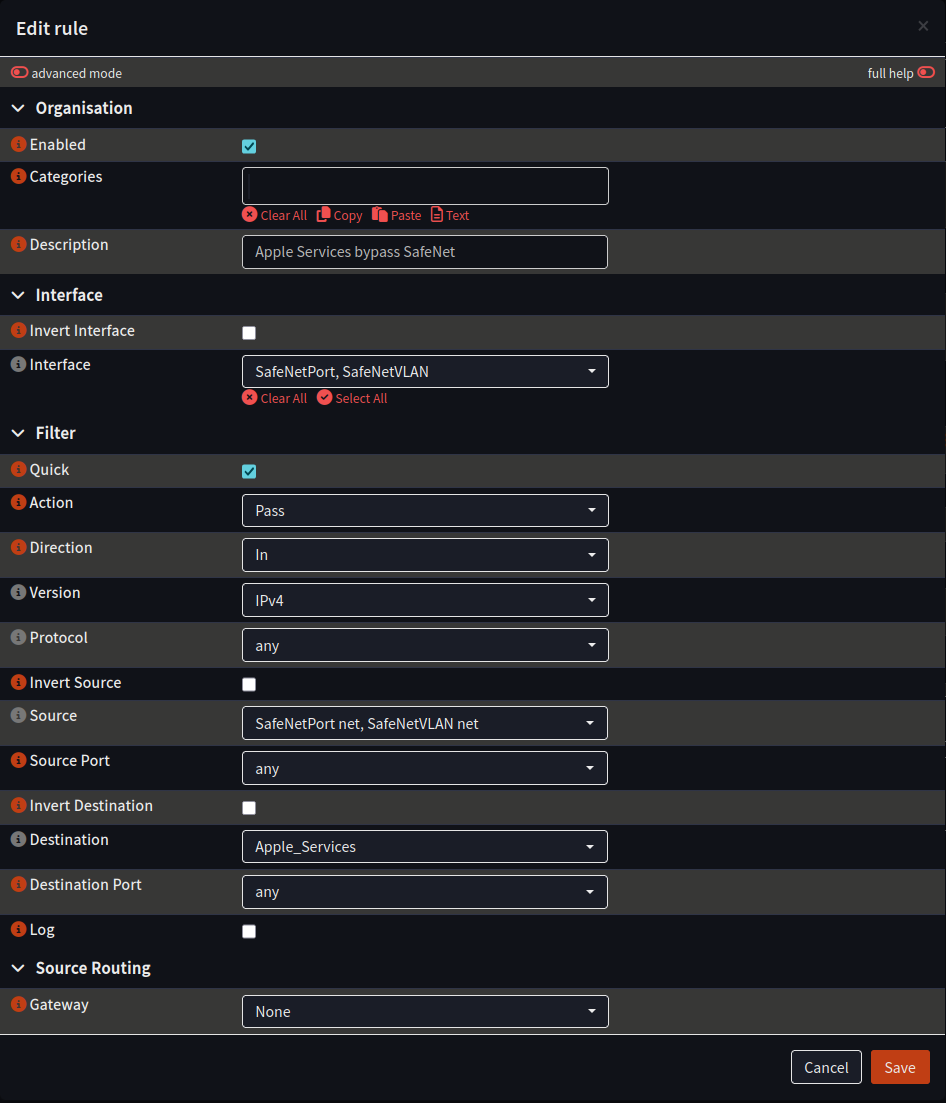
- Fill in the fields:
Organisation section:
- Enabled: Checked
- Description: Apple Services bypass SafeNet
Interface section:
- Interface: Select both SafeNetPort and SafeNetVLAN (you can select multiple interfaces by clicking each one)
Filter section:
- Quick: Checked
- Action: Pass
- Direction: In
- Version: IPv4
- Protocol: any
Source section:
- Source: Select both SafeNetPort net and SafeNetVLAN net
Destination section:
- Destination: Apple_Services (the alias you created in Step 1)
Source Routing section:
- Gateway: None
- Click Save
Step 3: Verify Rule Position
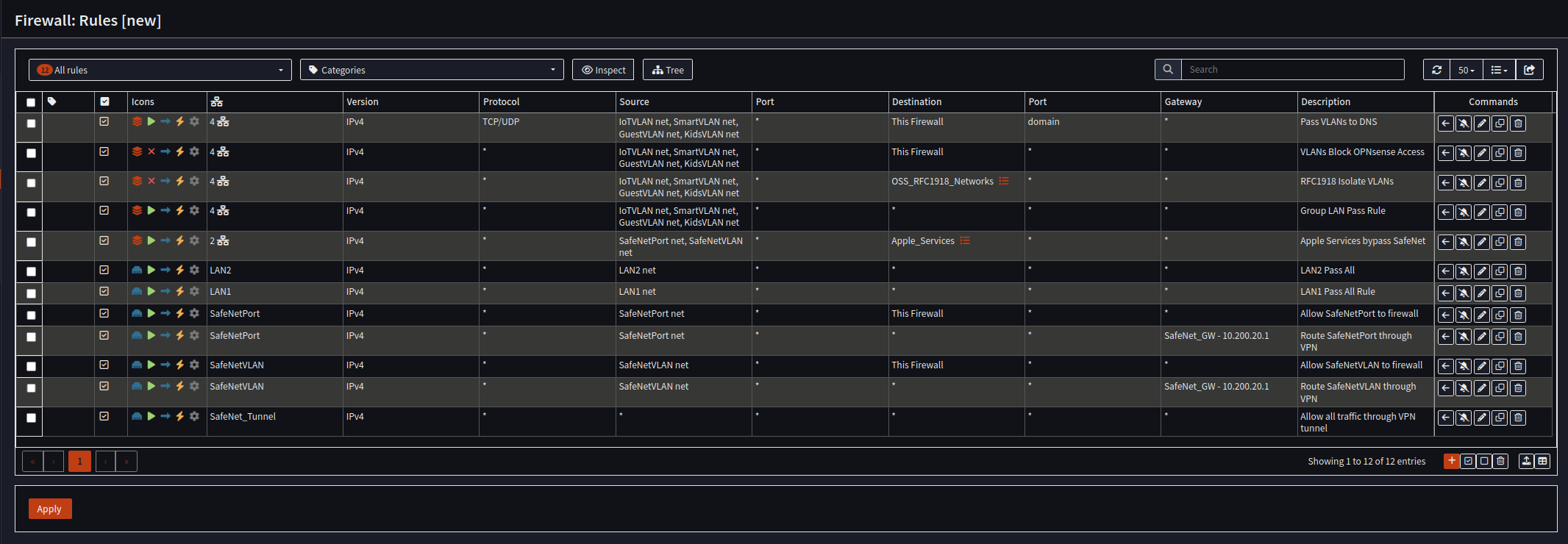
After saving, the rule will appear in your rules list. Because it applies to multiple interfaces, OPNsense treats it as a group rule and places it with the other group rules near the top of the list.
Your rules should look like this (12 rules total):
- Pass VLANs to DNS
- VLANs Block OPNsense Access
- RFC1918 Isolate VLANs
- Group LAN Pass Rule
- Apple Services bypass SafeNet – your new rule
- LAN2 Pass All
- LAN1 Pass All Rule
- Allow SafeNetPort to firewall
- Route SafeNetPort through VPN
- Allow SafeNetVLAN to firewall
- Route SafeNetVLAN through VPN
- Allow all traffic through VPN tunnel
The new rule does not need to be moved. OPNsense places it correctly. The important thing is that it appears above both “Route through VPN” rules so Apple traffic gets matched first and sent out your home internet instead of through SafeNet.
Click Apply at the bottom of the rules page.
Step 4: Reset Connection States
Existing connections were built under the old rules and need to be cleared so the new rule takes effect.
- Go to Firewall > Diagnostics > States
- Click the Actions tab
- Click Reset state table
- A warning will appear that all open connections will be broken. Click Reset
- Your browser may hang for a moment. Just refresh the page.
Important: After resetting the state table, reboot any devices connected to your SafeNet networks. This means your iPhone, iPad, MacBook, Apple TV, anything on the SafeNet WiFi or plugged into the SafeNet port. This forces them to establish new connections using the updated rule. Takes about two minutes and saves you from wondering why something stopped working.
Step 5: Verify It Works
On an Apple device connected to your SafeNet WiFi or SafeNet wired port:
- Open the App Store and confirm it loads
- Have someone send you an email or a message and confirm the push notification arrives
- Go to Settings > General > Software Update and confirm it can check for updates
If all three work, the split tunnel is configured correctly.
How It Works
Before this change, all traffic from your SafeNet networks went through the VPN tunnel. Apple’s servers saw a datacenter IP address and rejected the connection:
Apple device --> Vault --> SafeNet tunnel --> Datacenter IP --> Apple (rejected)After this change, traffic to Apple’s IP range (17.0.0.0/8) bypasses the tunnel and goes out your home internet. Apple sees your residential IP address and everything works:
Apple traffic --> Vault --> Home internet --> Residential IP --> Apple (works)
All other traffic --> Vault --> SafeNet tunnel --> Datacenter IP --> Internet (protected)
Your browsing privacy is unchanged. Only traffic to Apple’s servers takes the direct path.
Troubleshooting
Apple services still not working after setup:
- Confirm the alias is correct: Firewall > Aliases > Apple_Services should show 17.0.0.0/8
- Confirm the rule’s gateway is set to None, not SafeNet_GW
- Reset the state table again (Firewall > Diagnostics > States > Actions > Reset state table)
- Reboot the Apple device
Lost internet on SafeNet after adding the rule:
- Edit the Apple Services bypass rule and confirm the gateway is set to None. If you accidentally set it to a specific gateway, it could break routing
- Confirm you did not accidentally move or disable the existing SafeNet rules
Browser froze after resetting states:
- This is normal. Just refresh the page. You are on the Admin network (LAN1) so your own connection is not routed through SafeNet
Notes
- This only applies to Apple devices. Android, Windows, and Linux devices do not have this problem
- The 17.0.0.0/8 range is owned entirely by Apple. This will not accidentally bypass SafeNet for non-Apple traffic
- Some Apple software updates may use CDN servers outside the 17.0.0.0/8 range. If updates still fail after this setup, contact OSS support
- If you add more SafeNet servers in the future, this rule already covers them because it applies to both SafeNetPort and SafeNetVLAN interfaces